#1 메시지 박스 활용하기
1. 이름을 입력하는 창 띄우기
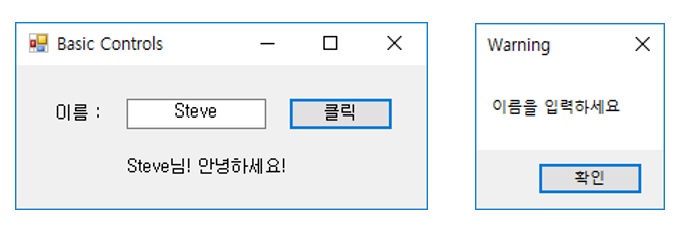
| private void btnClick_Click(object sender, EventArgs e) { if (txtName.Text != "") lblResult.Text = txtName.Text + "님! 안녕하세요!"; else MessageBox.Show("이름을 입력하세요", "Warning"); } |
2. 다양한 메시지 박스 프로그램
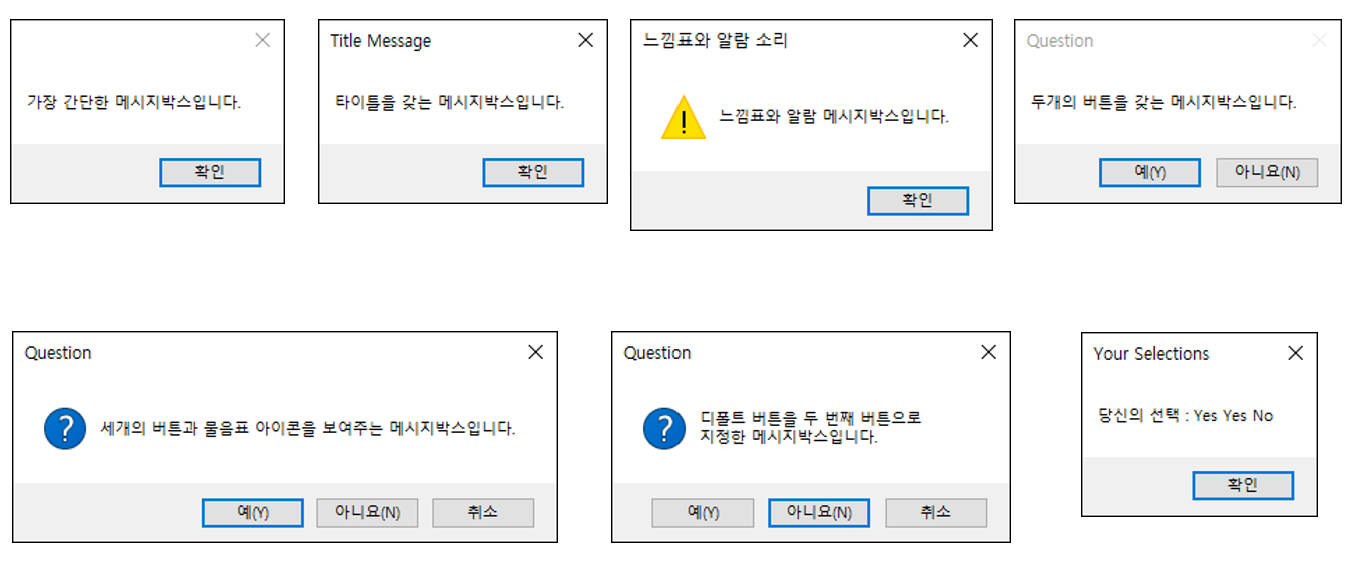
| private void Form1_Load(object sender, EventArgs e) { MessageBox.Show("가장 간단한 메시지박스"); MessageBox.Show("타이틀을 갖는 메시지박스", "타이틀"); MessageBox.Show("두개의 버튼을 갖는 메시지박스", "타이틀", MessageBoxButtons.YesNo); DialogResult result1 = MessageBox.Show("세개 버튼과 물음표 아이콘을 보여주는 메시지박스", "타이틀", MessageBoxButtons.YesNoCancel, MessageBoxIcon.Question); DialogResult result2 = MessageBox.Show("디폴트 버튼을 두번째 버튼으로\n 지정한 메시지박스", "타이틀", MessageBoxButtons.YesNoCancel, MessageBoxIcon.Question, MessageBoxDefaultButton.Button2); DialogResult result3 = MessageBox.Show("느낌표와 알람 메시지박스", "타이틀", MessageBoxButtons.OK, MessageBoxIcon.Exclamation); string msg = string.Format("당신의 선택: {0} {1} {2}", result1.ToString(), result2.ToString(), result3.ToString()); MessageBox.Show(msg); } } |
<메시지박스 관련 객체 및 함수>
- MessageBox.Show(): 메시지 창 띄우는 기능 제공
- MessageBoxButtons: 메시지 상자에 표시할 단추 지정
- MessageBoxIcon: 메시지 박스의 아이콘 표시(Question: 물음표 / Exclamation: 느낌표)
- MessageBoxDefaultButton: 기본 단추 정의하는 상수를 지정
(ex. 버튼 3개중 button2로 하면 기본값이 button 2번째가 됨) - DialogResult: 폼의 대화 상자 결과를 가져오거나 설정하는 자료형
- .Tostring(): 문자열 변환 함수
3. 레이블에서 여러 줄 출력(+레이블 원하는 크기 조정)
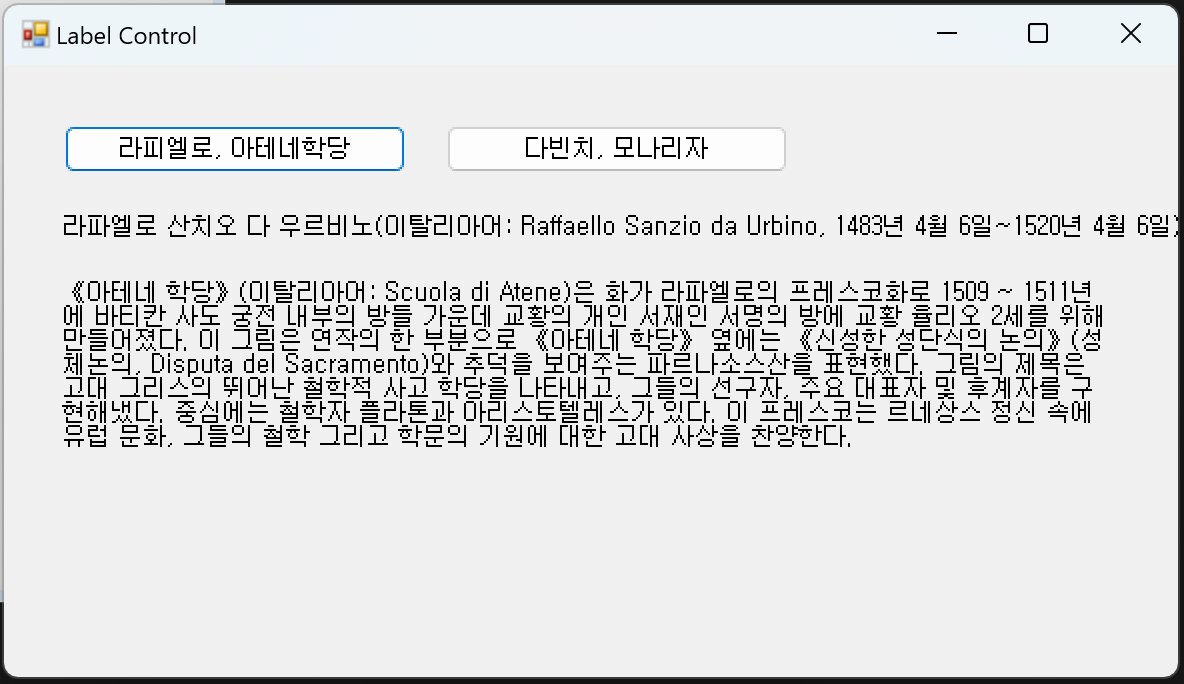
- Autosize: 자동 사이즈 지정 여부 정하는 속성
→ Autosize를 False로 조정하면 자유롭게 영역 조정이 가능(레이블 크기 직접 지정 가능)
4. 체크박스(여러개 선택)

| private void btnSubmit_Click(object sender, EventArgs e) { CheckBox[] cBox = { checkBox1, checkBox2, checkBox3, checkBox4, checkBox5 }; //CheckBox버튼 생성 //foreach 반복문을 통해서 item들의 check 여부 출력하는 메시지박스 string t = ""; foreach (var item in cBox) { t += string.Format("{0} : {1}\n", item.Text, item.Checked); } MessageBox.Show(t); // foreach 반복문을 통해서 check 표시된 아이템들만 알리는 메시지박스 string s = "좋아하는 과일: "; foreach (var item in cBox) { if (item.Checked == true) s += item.Text + " "; } MessageBox.Show(s); } |
| //if(checkBox1.Checked == true) // s += checkBox1.Text + " "; //s에 '사과'가 들어감 //if (checkBox2.Checked == true) // s += checkBox2.Text + " "; //if (checkBox3.Checked == true) // s += checkBox3.Text + " "; //if (checkBox4.Checked == true) // s += checkBox4.Text + " "; //if (checkBox5.Checked == true) // s += checkBox5.Text + " "; >> if문으로 하나하나 확인하기(별로 추천하지 않는 방법) |
<CheckBox 관련 객체 및 함수>
- CheckBox [] 배열명 = {...}: CheckBox 배열 선언 및 초기화, CheckBox 컨트롤을 배열로 관리 가능
- foreach (데이터 타입 변수 in 컬렉션) : foreach 반복문은 배열, 리스트 등의 각 요소를 순차적으로 탐색함
* 데이터타입과 변수: 컬렉션의 각 요소를 담아둘 변수 선언
* 컬렉션: 바배열, 리스트 등 반복 가능한 개체
* var: 컬렉션의 요소 타입을 자동으로 추론함(직접 명시하지 않아도 됨) - .Checked: CheckBox의 Check여부 확인하는 속성(True or False)
- .Text: CheckBox의 Text(이름) 출력하는 속
5. 라디오 버튼과 그룹박스
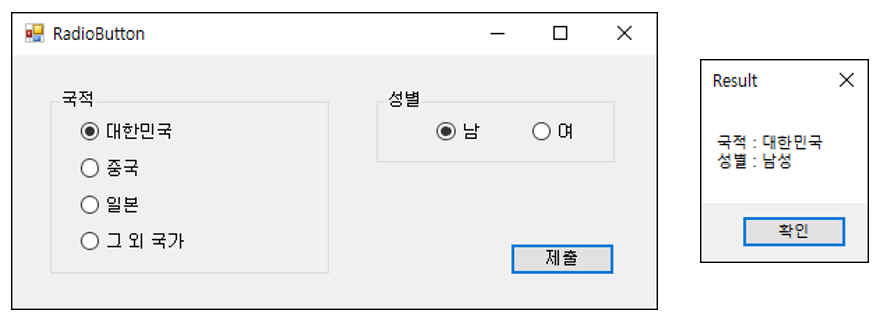
| private void btnGreeting_Click(object sender, EventArgs e) { string s = ""; RadioButton[] rBox = { rbKorea, rbChina, rbJapan, rbOthers }; //RadioButton 배열 생성 foreach(var country in rBox) { if (country.Checked == true) s += "국적: " + country.Text; } if (rbMale.Checked) s += "\n성별: 남성"; else if(rbFemale.Checked) s += "\n성별: 여성"; MessageBox.Show(s); } |
| ... if (rbKorea.Checked) s += "국적: 대한민국\n"; else if (rbChina.Checked) s += "국적: 중국\n"; else if (rbJapan.Checked) s += "국적: 일본\n"; else if (rbOthers.Checked) s += "국적: 그 외 국가\n"; ... |
<RadioButton 관련 객체 및 함수>
- RadioButton [] 배열명 = {...}: RadioButton 배열 선언 및 초기화, RadioBButton 컨트롤을 배열로 관리 가능
'Visual Programming' 카테고리의 다른 글
| WPF (0) | 2025.05.12 |
|---|---|
| Visual Programming과 Firebase 연동 (0) | 2025.04.28 |
| Visual Programming #3-2 (0) | 2025.03.16 |
| Visual Programming #3-1 (0) | 2025.03.13 |
| Visual Programming #1-#2 (0) | 2025.03.11 |


