#1 기본 이론
- Mark Up: <>로 표시하는 언어(ex. HTML, XML(표준포맷), XAML(XML기반 언어))
ㄴ Container(lay out): Grid / StackPanel / Canvas / UniformGrid / DockPanel / WrapPanel - XAML: 확장 가능한 Markup 언어(Extensible Application Markup Language)
* GUI를 만들기 위해 XML 변형한 언어 - Basic XAML
- 태그: 시작, 종료 <></> , 시작과 종료 한 번에 </>
- 내용(Content) - 시작 태그와 종료 태그 사이에 작성: <시작> 내용 </종료>
- Text: 텍스트 컨트롤의 내용 작성(ex. <TextBlock Text="내용".../>)
- Content: 문자 뿐만 아니라 UI도 담을 수 있는 요소(컨트롤)에 사용 (ex. <Button Content = "내용" ...>)
- 속성(Properites) - 시작 태그 안에 작성: <시작 FontWeight = "bold" Content = "A" ></종료>
#2 BackGround 설정 실습
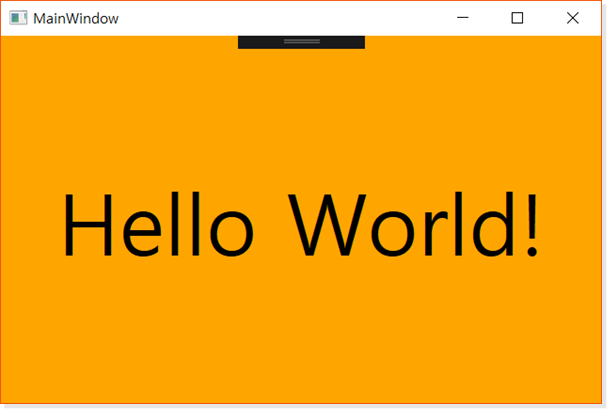
<Window x:Class="_034_WPF_HelloWorld.MainWindow"
        .....
        Title="HelloWorld" Height="450" Width="500">
    <Grid x:Name="grid1" Background="Orange">
        <TextBlock FontSize="72"
                   HorizontalAlignment="Center" VerticalAlignment="Center"
                   MouseDown="TextBlock_MouseDown">
            Hello World
        </TextBlock>
    </Grid>
</Window>
- Titile : window창 이름 설정
- Height/Width: 창의 세로*가로 높이 설정
- x:Name: 요소(컨트롤)의 변수명(이름) 설정
- Background: 배경색 설정
- <TextBlock>: 텍스트 표시 *C#의 label과 같은 유형
- Fontsize: 글자 크기 지정
- HorizontalAlignment: 요소(컨트롤) 자체의 가로(수평) 위치(ex. Button, TextBlock, Grid 안에 있는 요소 등)
- VertcalAlignment: 요소(컨트롤) 자체의 세로 정렬
- MouseDown: 마우스 클릭 시 이벤트 발생 (ex. MouseDown="변수명(자동생성 됨)_MouseDown")
(▼) MouseDown 이벤트 코딩
        private void TextBlock_MouseDown(object sender, MouseButtonEventArgs e)
        {
            MessageBox.Show("Text Clicked", "String MSG");
            if (grid1.Background == Brushes.Orange) { grid1.Background = Brushes.Aqua; }
            else grid1.Background = Brushes.Orange;
}- grid1.Background = Brushes.색상: 배경색을 불러오고 색상 지정
- .Background: 컨트롤의 배경 설정
- Brushes: 색상 브러시 제공(색상 직합)
#2 Grid 이용 실습
Grid는 내부에 있는 UI 요소를 표시하며, 요소들을 행과 열로 나누어 정렬 가능
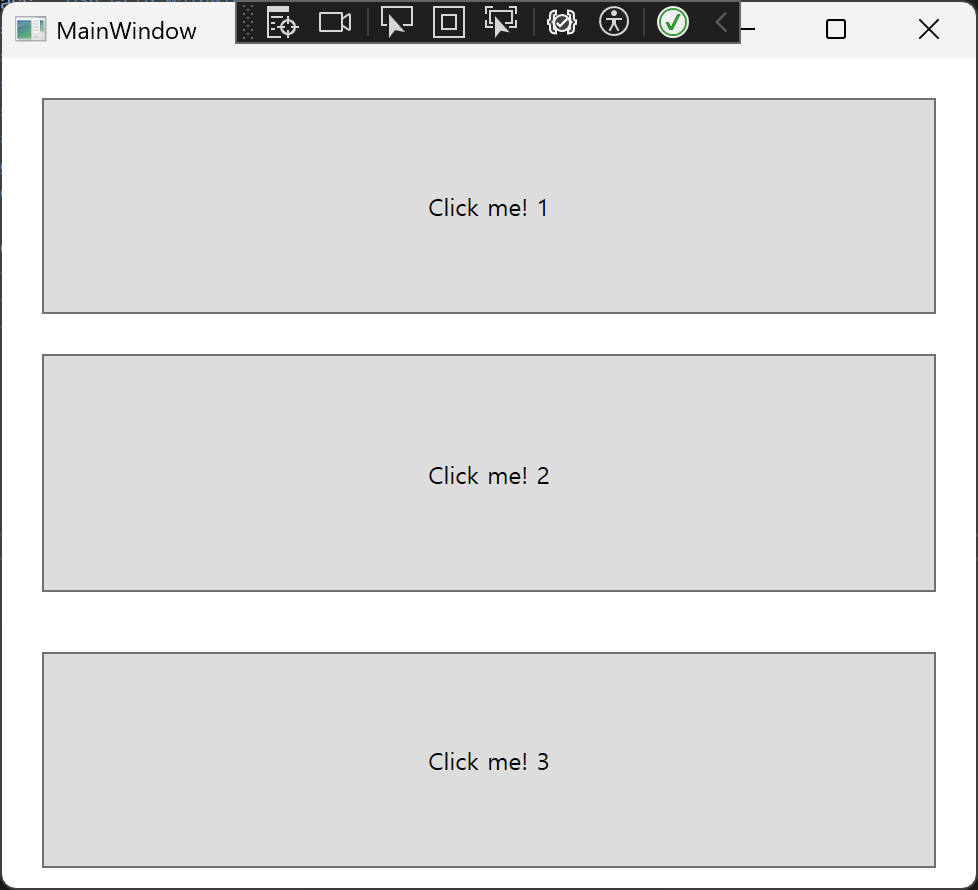
<Window x:Class="_035_Grid.MainWindow"
        ...
        Title="MainWindow" Height="450" Width="500">
    <Grid>
        <Grid.RowDefinitions>
            <RowDefinition/>
            <RowDefinition/>
            <RowDefinition/>
        </Grid.RowDefinitions>

        <Button Margin="20,20,20,10" Grid.Row="0">Click me! 1</Button>
        <Button Margin="20,10,20,10" Grid.Row="1">Click me! 2</Button>
        <Button Margin="20,20,20,10" Grid.Row="2">Click me! 3</Button>
    </Grid>
</Window>
- <Grid.RowDefinitions>: Grid의 행을 정의하는 영역 = 몇개의 행으로 나눌건지
▶ 그리고 그 몇개의 행을 <RowDefinition/>을 넣어서 행 개수를 정할 수 있음(함께 쓰임) - <RowDefinition/>: Grid의 하나의 행 정의하는 컨트롤
- Margin: 컨트롤 바깥쪽 여백 지정 (ex. Margin="좌 상 우 하")
- Grid.Row: 해당 컨트롤이 몇 번째 행에 들어가는 지 지정(0부터 시작)
#2 StackPanel 이용 실습
StackPanel은 레이아웃 컨트롤 중 하나로, 자식 요소들을 일정한 방향(가로, 세로)로 쌓는 컨테이너
* Orientation 컨트롤과 함께 쓰임
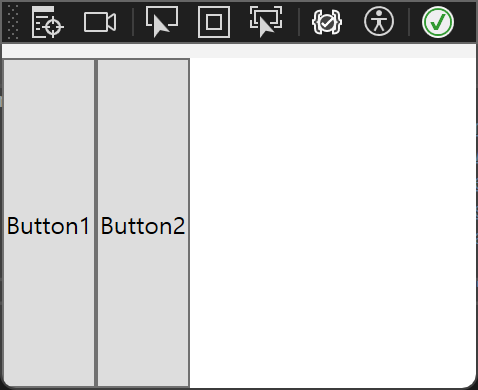
    <StackPanel Orientation="Horizontal">
        <Button>Button1</Button>
        <Button>Button2</Button>
</StackPanel>- Orientation: 방향 정렬(Horizontal: 수평(가로) 정렬 / Vertical: 수직(세로) 정렬 → Default)
#3 Login 창 만들기
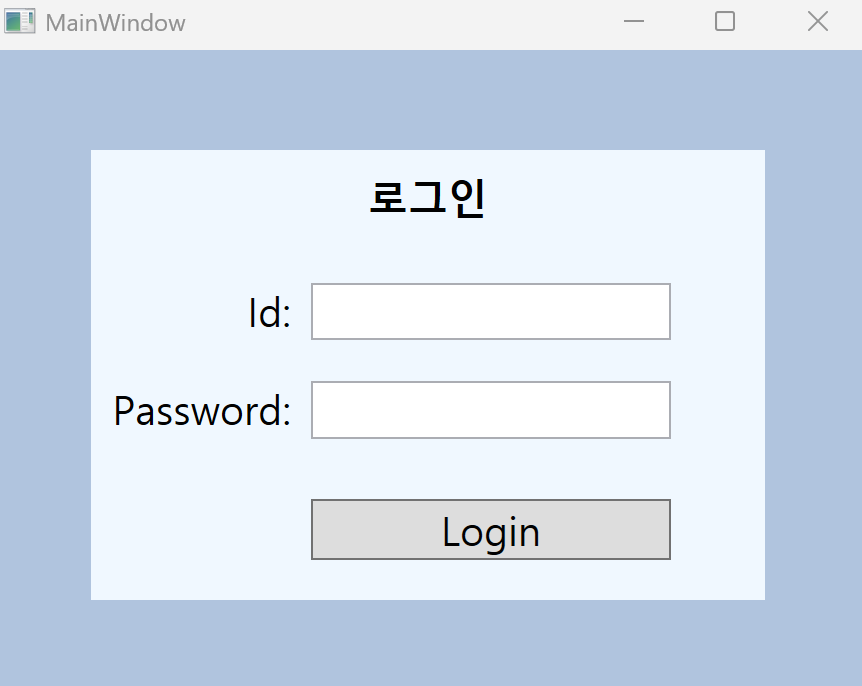
<Window x:Class="_037_Login.MainWindow"
        ...
        Title="MainWindow" Height="360" Width="450">
    <Grid Background="LightSteelBlue">

        <StackPanel Margin="50" Background="AliceBlue">
            <!--1층-->
            <TextBlock Padding="10"  HorizontalAlignment="Center"
            FontSize="20" FontWeight="Bold">로그인</TextBlock>

            <!--2층-->
            <StackPanel Orientation="Horizontal" Margin="0 20 0 10">
                <TextBlock Width="100" FontSize="20"
                TextAlignment="Right" Margin="0 0 10 0" >Id: </TextBlock>
                <TextBox x:Name="txtId" Width="180" FontSize="20"/>
            </StackPanel>

             <!--3층-->
            <StackPanel Orientation="Horizontal" Margin="0 10 0 10">
                 <TextBlock Width="100" FontSize="20"
                 TextAlignment="Right" Margin="0 0 10 0" >Password:</TextBlock>
                 <PasswordBox x:Name="txtPassword" Width="180" FontSize="20"/>
             </StackPanel>

            <!--4층-->
            <StackPanel Orientation="Horizontal" Margin="0 20 0 10">
                <TextBlock Width="100" FontSize="20"
                TextAlignment="Right" Margin="0 0 10 0"/>
                <Button x:Name="btnlogin" Width="180" FontSize="20"
                Click="login_Click">Login</Button>
            </StackPanel>
        </StackPanel>

    </Grid>
</Window>- Padding: 컨트롤 안쪽 여백 지정
- TextAlignment: 요소 내부 텍스트 정렬 지정 (ex. TextBlock, TextBox 등)
- <TextBox>: 텍스트 입력 받는 칸 *C#에서 textbox와 동일
- <PasswordBox>: 비밀번호 입력 칸(입력한 글자가 ●로 표시)
★ C#에서 PasswordBox 내용은 .Password로 가져와야 함 (ex. txtPassword.Password) - Click: 요소(컨트롤) 클릭 시 이벤트 (ex. Click="변수명(자동생성 됨)_Click")
- FontWeight: 글씨 굵기 지정
(▼) Click 이벤트 코딩
private void login_Click(object sender, RoutedEventArgs e)
{
    if (txtId.Text == "abcd" && txtPassword.Password == "1234") MessageBox.Show("로그인 되었습니다.");
    else MessageBox.Show("로그인 실패~");
}- .Text: Textbox의 텍스트(내용) 가져오기
- .PasswordBox: PasswordBox의 텍스트(내용) 가져오기
#4 Separator와 Checkbox 실습
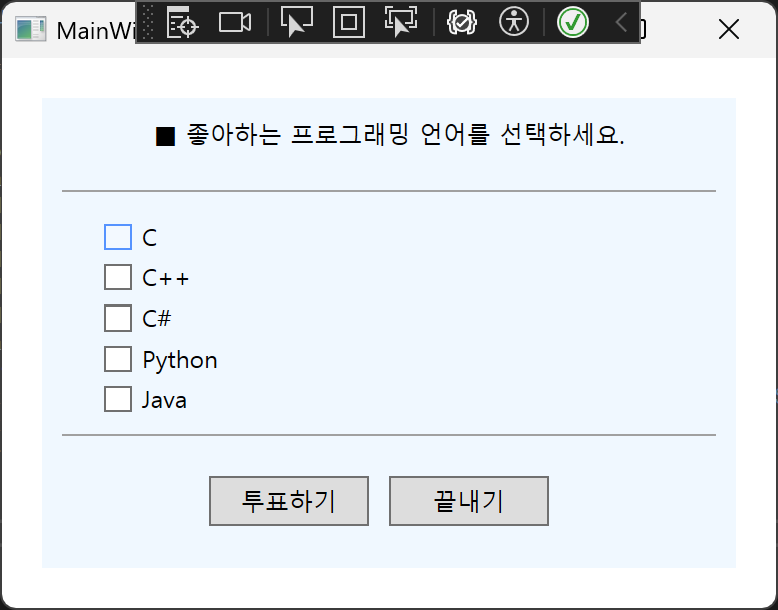
<Window x:Class="_039_WPF_Language.MainWindow"
        ...
        Title="MainWindow" Height="310" Width="400">
    <StackPanel Margin="20" Background="AliceBlue">
        <TextBlock HorizontalAlignment="Center" Margin="0 10">■ 좋아하는 프로그래밍 언어를 선택하세요.</TextBlock>
        <Separator Margin="10"/>
        <CheckBox x:Name="cbC" Margin="30 5 0 0">C</CheckBox>
        <CheckBox x:Name="cbCPP" Margin="30 5 0 0">C++</CheckBox>
        <CheckBox x:Name="cbCS" Margin="30 5 0 0">CC</CheckBox>
        <CheckBox x:Name="cbPython" Margin="30 5 0 0">Python</CheckBox>
        <CheckBox x:Name="cbJava" Margin="30 5 0 0">Java</CheckBox>
        <Separator Margin="10"/>
        <StackPanel  Orientation="Horizontal" HorizontalAlignment="Center">
            <Button x:Name="btnSubmit" Width="80" Height="25" Margin="0 10 10 0" Click="btnSubmit_Click">투표하기</Button>
            <Button x:Name="btnExit" Width="80" Height="25" Margin="0 10 10 0" Click="btnExit_Click">끝내기</Button>
        </StackPanel>
    </StackPanel>
</Window>- <Separator>: 구분선 생성
- <CheckBox>: 체크 박스 속성 생성
★ C#에서는 IsChecked 속성(체크 여부)과 함께 쓰인다.
(▼) Click 이벤트 시 코딩문
private void btnSubmit_Click(object sender, RoutedEventArgs e)
{
    CheckBox[] cbs = new CheckBox[] { cbC, cbCPP, cbCS, cbPython, cbJava };
    string msg = ""; //string msg = string.Empty;

    foreach(var x in cbs)
    {
        if (x.IsChecked == true) msg += x.Content + " ";
    }
    MessageBox.Show(msg + "이(가) 선택되었습니다.", "Language Prefered!");
}

private void btnExit_Click(object sender, RoutedEventArgs e)
{
    this.Close();
}- ★ .IsChecked: 체크 여부 확인 *C#에서는 . Checekd
- ★ .Content: checkbox의 텍스트(내용) 불러오기 및 설정 *C#에서는 .Text
#5 User Control 과 Dock Panel
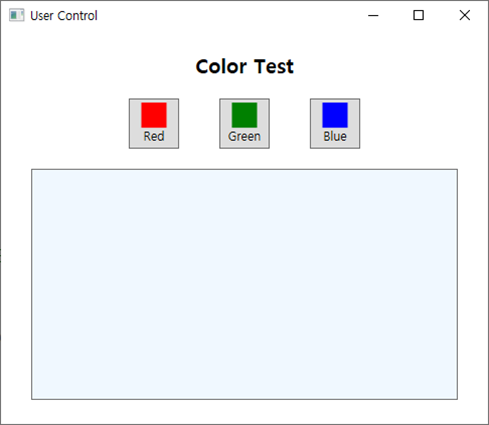
<Window x:Class="_040_WPF_User_Control.MainWindow"
        ...
        Title="MainWindow" Height="430" Width="400">
    <StackPanel>
        <TextBlock Text="Color Test" HorizontalAlignment="Center" FontSize="20" FontWeight="Bold" Padding="15"/>
        <StackPanel Orientation="Horizontal" HorizontalAlignment="Center">
            <!--첫번째 버튼-->
            <Button Width="50" Height="50" Margin="20" Click="Button_Click_1">
                <StackPanel>
                    <Rectangle Fill="Red" Width="25" Height="25"></Rectangle>
                    <TextBlock HorizontalAlignment="Center">Red</TextBlock>
                </StackPanel>
            </Button>
            <!--두번째 버튼-->
            <Button Width="50" Height="50" Margin="20" Click="Button_Click_2">
                <StackPanel>
                    <Rectangle Fill="Green" Width="25" Height="25"></Rectangle>
                    <TextBlock HorizontalAlignment="Center">Green</TextBlock>
                </StackPanel>
            </Button>
            <!--세번째 버튼-->
            <Button Width="50" Height="50" Margin="20" Click="Button_Click_3">
                <StackPanel>
                    <Rectangle Fill="Blue" Width="25" Height="25"></Rectangle>
                    <TextBlock HorizontalAlignment="Center">Blue</TextBlock>
                </StackPanel>
            </Button>
        </StackPanel>
        <Button x:Name="btnColor" Width="350" Height="200" Margin="10"></Button>
    </StackPanel>
</Window>- VerticalAlignment: 소(컨트롤) 자체의 세로(수직) 위치(ex. Button, TextBlock, Grid 안에 있는 요소 등)
- <Rectangle>: 사각형 도형 생성
- Fill: 도형의 색상, 브러시 설정
(▼) Button 눌렀을 때 하단의 button 색상 변경
        private void Button_Click_1(object sender, RoutedEventArgs e)
        {
            btnColor.Background = Brushes.Red;
        }

        private void Button_Click_2(object sender, RoutedEventArgs e)
        {
            btnColor.Background = Brushes.Green;
        }

        private void Button_Click_3(object sender, RoutedEventArgs e)
        {
            btnColor.Background = Brushes.Blue;
}- .Background: 컨트롤의 배경 설정
- Brushes: 색상 브러시 제공(색상 직합)
(▼)DockPanel 설정했을 때 코딩문
<Window x:Class="_040_WPF_User_Control.MainWindow"
        ...
        Title="MainWindow" Height="430" Width="400">
    <DockPanel LastChildFill="True">
        <TextBlock DockPanel.Dock="Top" Text="Color Test" HorizontalAlignment="Center" FontSize="20" FontWeight="Bold" Padding="15"/>
        <StackPanel  DockPanel.Dock="Top" Orientation="Horizontal" HorizontalAlignment="Center">
            <!--첫번째 버튼-->
            <Button Width="50" Height="50" Margin="20" Click="Button_Click_1">
                <StackPanel>
                    <Rectangle Fill="Red" Width="25" Height="25"></Rectangle>
                    <TextBlock HorizontalAlignment="Center">Red</TextBlock>
                </StackPanel>
            </Button>
            <!--두번째 버튼-->
            <Button Width="50" Height="50" Margin="20" Click="Button_Click_2">
                <StackPanel>
                    <Rectangle Fill="Green" Width="25" Height="25"></Rectangle>
                    <TextBlock HorizontalAlignment="Center">Green</TextBlock>
                </StackPanel>
            </Button>
            <!--세번째 버튼-->
            <Button Width="50" Height="50" Margin="20" Click="Button_Click_3">
                <StackPanel>
                    <Rectangle Fill="Blue" Width="25" Height="25"></Rectangle>
                    <TextBlock HorizontalAlignment="Center">Blue</TextBlock>
                </StackPanel>
            </Button>
        </StackPanel>
        <Button  DockPanel.Dock="Bottom" x:Name="btnColor" Width="350" Height="200" Margin="10"></Button>

    </DockPanel>
</Window>- <DockPanel>:컨트롤을 4방향(상하좌우) 중 하나로 붙여 배치하는 레이아웃
- LastChilldFill: 마지막 자식 요소는 남은 공간을 모두 채우도록 설정
- True: 마지막 자식은 남은 여백을 채움
- False: 마지막 자식도 Dock 방향만큼만 배치(공간이 남음)
- DockPanel.Dock: 자식요소가 어느방향으로 정렬될지 지정(ex. Top, Bottom, Left, Right)
#6 WrapPanel 실습
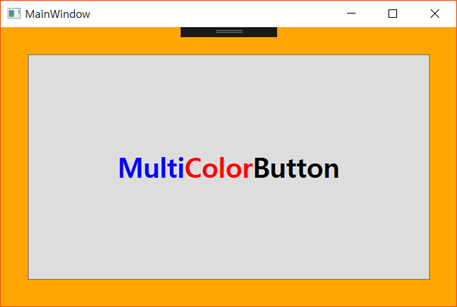
<Window x:Class="_041_.MainWindow"
        ...
        mc:Ignorable="d"
        Title="MainWindow" Height="450" Width="500">
    <Grid Background="Orange">
        <Button Margin="30" FontSize="30" FontWeight="Bold">
            <WrapPanel>
                <TextBlock Foreground="Blue">Multi</TextBlock>
                <TextBlock Foreground="Red">Color</TextBlock>
                <TextBlock>Button</TextBlock>
            </WrapPanel>
        </Button>
    </Grid>
</Window>- <WrapPanel>: WPF에서 자식 요소들을 자동으로 한 줄에 나열 하다가 공간이 부족할 시 줄을 바쿼 배치하는 컨테이너
- 정렬 방향 설정 가능(Orientation=Horizontal(default)/Vertical)
- 자식 간 간격 없음(필요할 시 Margin으로 조절)
- 자동 줄바꿈
- Foreground: 전경색 지정(글자색)
★ WPF에서는 상위 컨트롤(Button)의 FontSize, FontWeight 같은 글꼴 속성을 하위 텍스트 요소(TextBlock 등)에 자동으로 상속한다.
#7 UniformGrid 실습

<Window x:Class="_041_WPF_UniformGrid.MainWindow"
        ...
        Title="MainWindow" Height="450" Width="450">
    <UniformGrid x:Name="ChessBoard">

    </UniformGrid>
</Window>- <UniformGrid>: 자식 요소들을 모두 같은 크기(Uniform)으로 배치하는 그리드 레이아웃 컨트롤
▶Rows, Columns로 행,열 지정해 정렬 가능
(▼) C# for 반복문 이용
public partial class MainWindow : Window
{
    public MainWindow()
    {
        InitializeComponent();

        //코딩으로 체스판 만들기(Rectangle 64개 만들어서 chessBoard에 추가)
        //0,2,4,6(짝수)줄은 검/빨 반복
        //1,3,5,7(홀수)줄은 빨/검 반복

        ChessBoard.Rows = 8;
        ChessBoard.Columns = 8;

        for(int i=0; i<8; i++)
        {
            for(int j=0; j<4; j++)
            {
                if (i % 2 == 0) //짝수줄
                {
                    Rectangle r1 = new Rectangle();
                    r1.Fill = Brushes.Black;
                    ChessBoard.Children.Add(r1);

                    Rectangle r2 = new Rectangle();
                    r2.Fill = Brushes.Red;
                    ChessBoard.Children.Add(r2);
                }
                else //홀수줄
                {
                    Rectangle r1 = new Rectangle();
                    r1.Fill = Brushes.Red;
                    ChessBoard.Children.Add(r1);

                    Rectangle r2 = new Rectangle();
                    r2.Fill = Brushes.Black;
                    ChessBoard.Children.Add(r2);
                }
            }

        }
    }
}- Uniform 속성
- .Rows: UniformGrid의 열 설정(균등)
- .Columns: UniformGrid의 행 설정(균등)
- .Children: UniformGrid에 포함된 자식 요소들 리스트
- .Add(): UniformGrid에 자식 요소 추가
- Rectangle r1 = new Rectangle(): WPF에서 도형(사각형) 생성 컨트롤
'Visual Programming' 카테고리의 다른 글
| Visual Programming과 Firebase 연동 (0) | 2025.04.28 |
|---|---|
| Visual Programming #4 (0) | 2025.03.17 |
| Visual Programming #3-2 (0) | 2025.03.16 |
| Visual Programming #3-1 (0) | 2025.03.13 |
| Visual Programming #1-#2 (0) | 2025.03.11 |


